
For most small businesses, the fastest practical way to build a client portal is a hosted no-code platform or an Airtable-plus-front-end stack. Custom development is the right call when you’re dealing with complex legacy integrations, HIPAA-level compliance, or white-label ownership requirements. No-code gets you live in days to a few weeks for roughly $30–$150/month in platform fees; custom development typically runs $5,000–$25,000+ upfront with a 6–16 week timeline. The payoff either way: fewer status emails, faster client onboarding, and one place where files, approvals, and invoices actually live.
Key Takeaways
Building a client portal the right way means starting with the minimum viable feature set, piloting with one client before full rollout, and choosing the build path that matches your actual compliance and integration requirements.
| Point | Details |
|---|---|
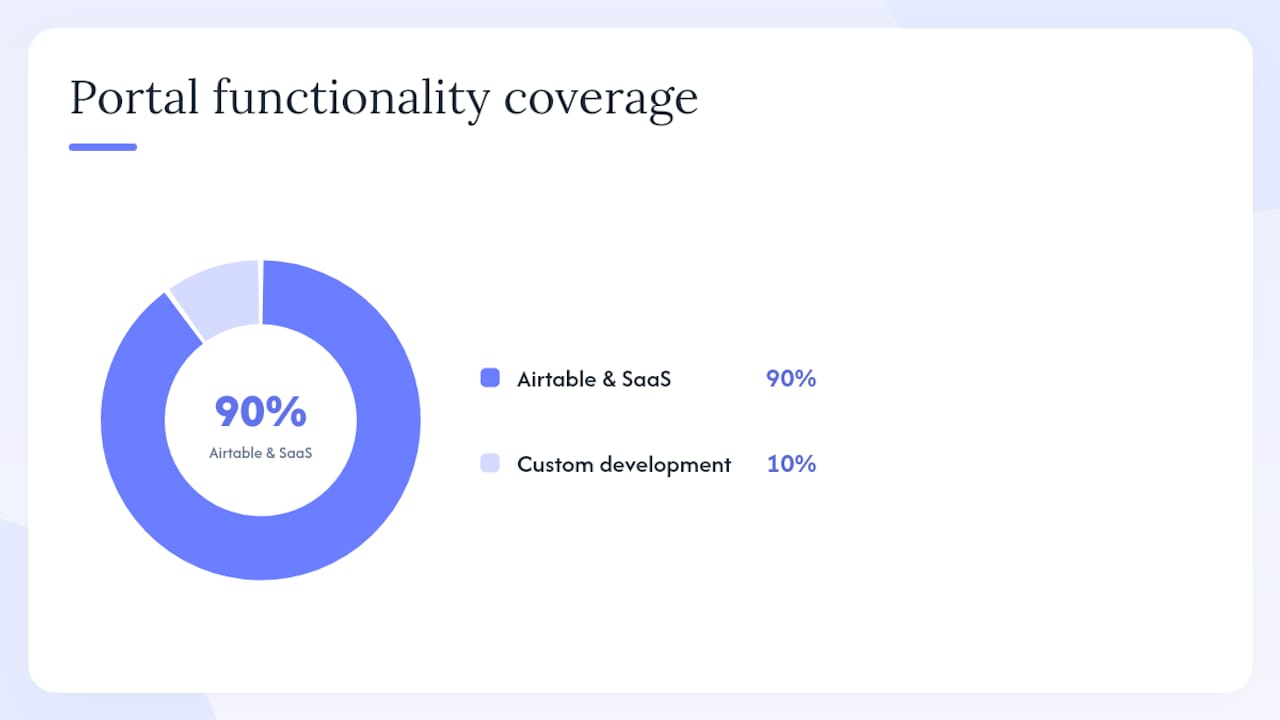
| Choose your path first | No-code covers roughly 90% of small business needs; custom development is justified for complex integrations or compliance. |
| Four features before launch | Login, row-level access control, file sharing, and a status dashboard are non-negotiable before inviting any client. |
| Pilot before full rollout | Onboard one patient client first to catch permission gaps and broken flows before they hit your full client base. |
| Cost and timeline reality | No-code launches in 3 days at $30–$150/month; custom builds run $5,000–$25,000+ over 6–16 weeks. |
| Ctrlaltorion for complex builds | When legacy integrations, HIPAA compliance, or white-label ownership exceed no-code limits, Ctrlaltorion handles the full build and handoff. |
Table of Contents
- Which path should you take to build a client portal?
- What features does every client portal actually need?
- Step-by-step no-code build workflow
- How do you lock down security and access control?
- How should you connect your portal to other tools?
- What makes clients actually use the portal?
- Pre-launch checklist and ongoing maintenance
- What does it realistically cost and how long does it take?
- When does it make sense to hire Ctrlaltorion?
- The part most guides won’t tell you
- Ctrlaltorion builds client portals that don’t require a developer to maintain
- Useful resources for building your portal
- Sources
Which path should you take to build a client portal?
The decision isn’t really about technical skill. It’s about what your portal needs to do on day one versus year two.
A structured six-step build process (define needs → choose approach → set structure → brand and access → test with one client → iterate) works for both no-code and custom builds, according to Fastio’s practitioner guide. That sequence holds regardless of which tool you pick. What changes is the cost, the ceiling, and who does the work.
Use this checklist to pick your path:
- Budget: For setups with limited budgets, no-code platforms are preferred. For larger budgets needing custom logic, hiring a developer may be appropriate.
- Timeline: Need something live in two weeks? No-code wins. If your timeline allows for several weeks of development, custom solutions may be viable.
- Integrations: Connecting to Stripe, Google Calendar, or a standard CRM? No-code handles it. Connecting to a legacy ERP, a proprietary database, or a HIPAA-covered system? You need a developer.
- Security and compliance: Handling protected health information (PHI) or EU personal data at scale? HIPAA and GDPR obligations push you toward custom or enterprise-tier SaaS with signed Business Associate Agreements.
- User scale and ownership: Dozens of clients? No-code is fine. Hundreds of clients with custom SLAs, white-label branding, or resale rights? Custom development pays for itself.
Analysis of portal options consistently shows that most small businesses get roughly 90% of the functionality they need from off-the-shelf or Airtable-based portals. Custom builds are costlier and take longer, but they’re the only path when your requirements genuinely exceed what a SaaS platform can configure.
Pro Tip: Before you commit to a platform or a developer, pilot the portal with one patient client. You’ll catch permission gaps, broken file-upload flows, and confusing UX before they become a support surge.
What features does every client portal actually need?
Skip the feature bloat. A portal clients ignore is worse than no portal at all. Here’s the minimum viable feature set, with a priority tier for each:
| Feature | Priority | Why it matters |
|---|---|---|
| Individual login and authentication | Essential | Shared links are a security liability; each client needs their own credentials. |
| Per-client access control (row-level) | Essential | Clients must see only their own records, files, and invoices — never another client’s. |
| File sharing and upload | Essential | Replaces email attachments; gives both sides a versioned, searchable record. |
| Project or status dashboard | Essential | Eliminates “where are we?” emails; clients self-serve on progress. |
| Messaging or feedback thread | High value | Keeps communication in context, tied to specific deliverables. |
| Invoice and payment access | High value | Links to Stripe, QuickBooks, or a payment page; reduces billing friction. |
| Activity and audit logs | High value | Tells you who accessed what and when — critical for compliance and disputes. |
| Intake forms and e-signatures | Optional | Useful for onboarding; can be added post-launch via integration. |
The first four features map directly to the most common client complaints: not knowing where their files are, not knowing project status, and receiving invoices through three different channels. Build those four first. Add the rest in iteration two.
Step-by-step no-code build workflow
No-code builders and platform templates let you go live in days to a few weeks without hiring a developer. Here’s the sequence that works.
-
Define your users and data model. List every object your portal needs to track: clients, projects, files, invoices, messages. Map relationships (one client → many projects → many files). This takes an hour but prevents painful restructuring later.
-
Choose your platform. For most small businesses, the choice is between a hosted SaaS portal tool and an Airtable-plus-front-end stack (Softr or Stacker sitting on top of an Airtable base). Hosted SaaS is faster to configure; Airtable gives you a flexible single source of truth with more control over your data model.
-
Set up authentication and roles. Configure individual logins, not shared passwords. Assign roles (admin, client, team member) and lock down what each role can see and edit. This is the step most people rush — don’t.
-
Build client views. Create filtered views so each client sees only their records. In Airtable-based stacks, this means filtering by a client ID field linked to the logged-in user. In hosted SaaS, it’s usually a workspace or permission group setting.
-
Enable file upload and versioning. Connect cloud storage (Google Drive, Dropbox, or native storage) and set upload size limits. Label folders by client and project so files don’t pile up in a single bucket.
-
Wire integrations. Calendar scheduling (Calendly or Google Calendar), payment processing (Stripe), and email notifications are the three most common. Use a middleware layer like Make or n8n to handle webhook-based triggers without writing code.
-
Automate notifications. Set up email or SMS alerts for key events: new file uploaded, invoice due, project status changed. Clients who get proactive updates log in more often and ask fewer questions.
-
Test as a client. Create a test account with client-level permissions and walk through every flow: login, view a project, upload a file, view an invoice, send a message. Note every friction point.
-
Deploy and configure your domain. Point a custom subdomain (portal.yourbusiness.com) to your platform. Some platforms handle this natively; self-hosted builds require a cloud project provisioning step to configure DNS, SSL, and hosting infrastructure.
Pilot plan: Invite one or two patient clients before a full rollout. Give them a short feedback form. Fix what breaks. Then batch-invite the rest.
How do you lock down security and access control?
Security in a client portal isn’t a feature you add at the end. It’s a constraint you design around from step one. Here’s the minimum you need to verify before inviting a single client:
- Authentication: Require individual logins with strong passwords. Prefer single sign-on (SSO) via Google or Microsoft OAuth where your platform supports it. Never use a shared public link for anything sensitive.
- Row-level access control: Every client must see only their own records. Enforcing row-level permissions is foundational — a misconfigured filter that exposes one client’s files to another is a serious breach, not a minor bug.
- Encryption in transit: Verify your platform enforces TLS 1.2 or higher on all connections. No exceptions.
- Encryption at rest: Check whether your platform or cloud storage encrypts stored files. Most major providers do; confirm it in their documentation rather than assuming.
- Backups and recovery: Know your backup frequency (daily at minimum) and test a restore. A portal with no recovery plan is a liability.
- Audit logs: Log every login, file access, and permission change. These logs are your first line of defense in a dispute and your evidence trail in a compliance audit.
Compliance callouts for U.S. businesses:
HIPAA applies the moment your portal handles protected health information (PHI) — patient names, diagnoses, treatment records. If that’s your situation, you need a signed Business Associate Agreement (BAA) with every vendor in your stack and technical safeguards that go beyond what most no-code platforms provide by default. Consult legal counsel before launch.
GDPR applies if you collect or process personal data from EU residents, even if your business is based in the U.S. The practical requirements: a clear privacy notice, a lawful basis for processing, and the ability to delete a user’s data on request.
Pro Tip: Before launch, log in as a test client account and try to access another client’s records by manipulating the URL or filters. If you can see data you shouldn’t, your row-level permissions are broken. Fix that before any real client touches the portal.
How should you connect your portal to other tools?
Integration is where portals either become genuinely useful or turn into a maintenance burden. The goal is a single source of truth — usually your database or Airtable base — with other tools reading from or writing to it, not duplicating it.
- CRM: Sync client records one-way from your CRM into the portal database, or use the portal database as your CRM. Avoid two-way syncs unless you have a clear conflict-resolution rule.
- Calendar and scheduling: Connect a scheduling tool so clients can book calls directly from the portal. Webhook triggers work better than polling here — the booking fires an event, which updates the portal record immediately.
- Payments: Stripe is the most common integration. Use webhooks to update invoice status in real time when a payment clears. Never rely on manual reconciliation.
- File storage: Google Drive and Dropbox both offer APIs that no-code middleware can call. Store files in the cloud provider; store the file metadata (name, upload date, client ID) in your portal database.
- Email notifications: Trigger transactional emails through SendGrid or Postmark when key events fire. Avoid relying on your portal platform’s built-in email if you need delivery tracking and bounce handling.
- Middleware layer: Make (formerly Integromat) and n8n handle the connective tissue between tools without custom code. Build retry logic into every automation — a failed webhook that silently drops data is worse than no automation at all.
For self-hosted or cloud-provisioned builds, start by creating a cloud project to provision your API credentials, storage buckets, and hosting environment before wiring any integrations.
Integration testing checklist: verify each webhook fires correctly, confirm idempotency (duplicate events don’t create duplicate records), set up alerting for failed automations, and check that your middleware provider’s status page is bookmarked for outage monitoring.
What makes clients actually use the portal?
A portal that clients ignore is a failed project, regardless of how well it’s built. Good portal UX design starts with the first screen a client sees after logging in.
The landing experience should answer three questions immediately: who is this for, what do I do next, and where is my stuff? A personalized welcome message (even just “Welcome back, [First Name]”), a single prominent next action (upload your contract, view your project status), and a progress indicator for onboarding steps covers all three.
A practical onboarding flow looks like this:
- Welcome screen with a short explainer (two sentences max)
- Intake form or required document upload
- Scheduling link for a kickoff call
- Confirmation screen with what happens next
Branding essentials: Custom subdomain, your logo, your brand colors, and consistent copy throughout. Clients who land on a generic platform URL with default styling don’t trust the portal. It takes less than an hour to configure these in most platforms.
Mobile-first is non-negotiable for file uploads. Clients frequently photograph and upload documents from their phones. Save-and-continue on multi-step forms prevents lost progress when a client gets interrupted mid-upload.
Pre-launch checklist and ongoing maintenance
Don’t skip this. A broken portal exposed to your full client base generates a support surge that takes days to contain. Pilot testing with a patient client first is the single most effective way to prevent that.
Pre-launch checks:
- Permissions audit: log in as each role and verify what’s visible
- File upload test: upload files at the maximum expected size from both desktop and mobile
- Payment flow test: run a test transaction end-to-end
- Email deliverability: send test notifications and check spam placement
- Mobile check: test every core flow on iOS and Android
- Custom domain and SSL: confirm the padlock is green and the subdomain resolves correctly
Pilot plan: Invite one or two clients who will give you honest feedback. Observe where they hesitate or ask questions. Iterate before the batch rollout.
Ongoing maintenance cadence:
- Weekly: check error logs and failed automation alerts
- Monthly: review login rates (low login rate = adoption problem, not a technical one), run a permissions audit, verify backups restored correctly
- Quarterly: update platform dependencies, review third-party integration terms, rotate API credentials
- Annually: full security review, reassess whether the platform still meets your compliance requirements
What does it realistically cost and how long does it take?
What drives cost up: complex third-party integrations (each one adds $500–$2,000 in custom build time), HIPAA compliance infrastructure, high file storage volumes, custom authentication (SSO, MFA), and white-label requirements. A portal with a Stripe integration and Google Calendar sync is a very different scope from one that connects to a legacy CRM via a custom API.
Some platforms advertise generating a branded portal prototype in minutes, and that’s technically accurate for the initial scaffold. Production hardening — real client data, custom branding, tested permissions, and live integrations — takes additional hours to days regardless of the platform.
The ROI case for any path is straightforward: if your team spends three hours per week answering status emails and chasing document uploads, a portal that eliminates that pays for a $100/month SaaS subscription in the first week.
When does it make sense to hire Ctrlaltorion?
Some portals genuinely exceed what a no-code stack can handle safely. The triggers are specific:
- You’re connecting to a legacy system with no modern API
- HIPAA compliance is required and your current vendor won’t sign a BAA
- You need single sign-on tied to an existing identity provider (Okta, Azure AD)
- File volumes or user counts are pushing platform limits
- You need custom SLAs, white-label ownership, or resale rights
- Your data model is complex enough that a SaaS platform’s schema is a constant workaround
Ctrlaltorion handles the full scope: discovery and architecture, custom integrations (APIs, webhooks, legacy connectors), secure hosting, and handoff training so your team can manage the portal after launch. The process starts with a discovery conversation to scope the work before any commitment.
The part most guides won’t tell you
The most common mistake we see isn’t choosing the wrong platform. It’s overbuilding before anyone has used the thing.
Teams spend weeks configuring intake forms, custom notification sequences, and elaborate permission hierarchies — then launch to clients who log in once, get confused, and go back to email. The portal becomes a ghost town with a monthly subscription attached to it.
The better approach: launch with the four essential features (login, access control, file sharing, status dashboard), invite two clients, and measure whether they actually log in. If login rates are low, the problem is UX or onboarding, not missing features. Fix that before adding anything else.
Iterative launches feel slower but they’re faster in practice. You spend your time on what clients actually use, not on what you assumed they’d want. And when something breaks in a two-feature portal, the blast radius is contained. When something breaks in a twenty-feature portal you haven’t tested properly, you’re in for a long week.
Ctrlaltorion builds client portals that don’t require a developer to maintain
Most small businesses don’t need a six-figure custom build. They need something that works, connects to the tools they already use, and doesn’t require a developer every time a client needs a new permission level.
Ctrlaltorion delivers end-to-end portal builds: discovery and scoping, custom integrations with your existing CRM, payment processor, and file storage, secure hosting with proper access controls, and a handoff so your team owns the portal from day one. No lock-in, no ongoing retainer required unless you want one. If you’re past the point where a SaaS template covers your needs, get a project estimate and we’ll scope it in a single call.
Useful resources for building your portal
- How to Create a Client Portal in 6 Steps — Fastio’s practitioner guide covering the define-to-iterate sequence, with pilot testing guidance.
- Build a Client Portal Without Hiring a Developer — Totalum’s walkthrough of data model, auth, filtered views, and row-level access control.
- Client Portal Builder: Ship a Branded Portal in 5 Minutes — Useful for understanding what instant-generation tools can and can’t do out of the box.
- Retool Status Page — Bookmark this (and your other platform status pages) for outage monitoring during maintenance windows.
comments
loading comments…
No comments yet. Start the thread.