Disclosure: some links below are Amazon affiliate links (tag cao04-20). Costs you nothing; the picks don’t change based on that. Every spec, price, and support date below is sourced at the bottom.
Picture the hour after you find out.
Maybe it’s a webshell in /tmp. Maybe it’s a hosting email saying they suspended outbound mail. Maybe it’s a customer forwarding you a spam message that came from your domain. Whatever the trigger, the next ninety minutes look the same in every small business in the country: one person, at their own desk, on their own computer, opening eleven browser tabs and changing eleven passwords.
Hosting control panel. WordPress admin. The database user. SFTP. The registrar. DNS, if it’s somewhere else. Google Workspace or Microsoft 365. The payment gateway. The email marketing tool. The backup service. Whatever the site’s third-party form handler is.
It’s the right list. It’s done in the wrong place.
Because the single most likely explanation for how someone got in — more likely than a zero-day, more likely than a brute-force, more likely than an insider — is that a credential or a live session cookie came off a workstation. And the workstation you just typed eleven new passwords into is the same one you’ve been using for email attachments, Chrome extensions, a “free PDF converter” someone installed in 2023, and whatever your nephew put on it. If that machine is the leak, you did not rotate your credentials. You published them.
This is a short piece about a boring purchase that fixes a narrow problem completely: a cheap ChromeOS laptop that lives in a drawer, does exactly one category of work, and can be returned to a known-good state in about five minutes with cryptographic backing. Not a productivity machine. Not a second laptop for travel. A clean machine.
The re-compromise loop, and why it’s the default outcome
The mechanism here isn’t exotic and the numbers aren’t small.
Infostealer malware — the commodity kind, distributed through cracked software, fake installers, and malicious ads — does one job: it reads everything credential-shaped off a machine and ships it out as a “stealer log.” Browser-saved passwords. Autofill data. API keys sitting in config files. And, critically, session cookies, which are the part that bypasses your two-factor authentication entirely, because a valid session cookie means the login already happened.
SpyCloud’s 2026 Identity Threat Report documented 18.1 million exposed API keys and tokens from malware sources alone. Not from breaches, not from leaks — from malware on endpoints. Google’s own framing when it shipped its countermeasure was blunter: infostealers extract authentication cookies and exfiltrate them, and because cookies routinely have long lifetimes, attackers get into accounts without ever touching a password.
Now put those two facts next to the ninety-minute rotation session described above.
If the attacker’s foothold is on your desktop, then:
- The new hosting password goes into your browser’s password manager, which the stealer reads on its next run.
- The new Workspace session generates a new cookie, which gets exfiltrated.
- The registrar login you just changed gets used before you’ve finished the list.
You will conclude you were hacked twice. You were hacked once, and then you handed over the new keys.
The fix is embarrassingly simple in concept and almost never done in practice: rotate credentials from a device whose state you can vouch for. Everything in this piece is about making that device cost $300 instead of an argument.
”Clean” is a property you can test, not a feeling
Here’s why ChromeOS specifically, rather than “a cheap Windows laptop you keep offline.”
Two mechanisms do the actual work:
Verified boot. A ChromeOS device checks its own system integrity on every single startup. If the firmware or OS image has been tampered with or corrupted, the device repairs itself by reverting to a known-good state. This isn’t a scanner making a judgment call about whether a file looks malicious. It’s a signature check against what the OS is supposed to be. Google’s own documentation notes that this layer keeps functioning even after a device stops receiving updates.
Powerwash. A factory reset that wipes all local user data and returns the device to a fresh state, and takes minutes rather than an afternoon. There’s no reimaging, no driver hunt, no product key, no “did the wipe actually get the secondary partition” question.
Together they give you something you cannot get cheaply on Windows or macOS: a device where “is this machine clean?” has a procedure, not an opinion. Five minutes before you start the rotation, you Powerwash. When it boots, verified boot has confirmed the system image. You sign in, you do the eleven tabs, you sign out, you Powerwash again, and you put it in the drawer.
The reason this is worth $300 and not a lecture about discipline is that the alternative — “just be careful on your main machine” — has failed for every business that has ever tried it, including yours, which is why you’re reading this.
Note what this is not. This is not antivirus. It does not detect anything. It does not protect you from phishing: if you type your credentials into a convincing fake login page on a freshly-Powerwashed Chromebook, you are just as compromised, which is why the hardware-key section below matters. What it eliminates is persistent local compromise — the resident malware that reads your keystrokes and steals your cookies. That’s one specific threat, and it happens to be the one that turns a single incident into a recurring one.
What to actually buy: the “Plus” floor is the right floor
You want the cheapest device that meets Google’s Chromebook Plus specification. Not the cheapest Chromebook. There’s a real line here, and it’s not marketing.
Chromebook Plus is a hardware certification with published minimums:
| Requirement | Chromebook Plus minimum |
|---|---|
| Processor | Intel Core i3 12th gen or above, or AMD Ryzen 3 7000 series or above |
| RAM | 8 GB |
| Storage | 128 GB |
| Display | Full HD with IPS |
| Webcam | 1080p or better, with temporal noise reduction |
Compare that to the $150 school-cart Chromebook floor, which is routinely 4 GB of RAM and 32 GB of eMMC storage. A 4 GB/32 GB machine will technically do the job, and it will also be unpleasant enough that you won’t use it, which makes it a $150 donation to a drawer.
But the Plus floor matters for a second reason that has nothing to do with performance, and this is the part most buying guides miss. Google is merging ChromeOS and Android into a single platform — internal codename Aluminium OS. Android Ecosystem President Sameer Samat confirmed it on stage at Qualcomm’s Snapdragon Summit in September 2025 (“We’re going to be combining ChromeOS and Android into a single platform”), with the unified platform slated for 2026. The device-readiness guidance for that transition is a 2021-or-newer processor, at least 8 GB of RAM, and 128 GB or more of storage. A 4 GB / 32 GB machine won’t qualify no matter how new the chip is.
Which is, almost exactly, the Chromebook Plus floor. Buying to the Plus certification is how you avoid buying a device that gets left behind by a platform transition you didn’t know was happening.
To be clear about what this transition does not threaten: Google VP John Maletis has stated plainly that “ChromeOS isn’t going anywhere” despite the shift to the Android-based stack, and the ten-years-from-launch update commitment holds whether or not a given device ever upgrades to Aluminium OS. Devices that can’t make the jump keep getting security updates on ChromeOS. For a machine whose job is to be secure and boring, that’s the only part of the roadmap you need.
The lead pick: Acer Chromebook Plus 515
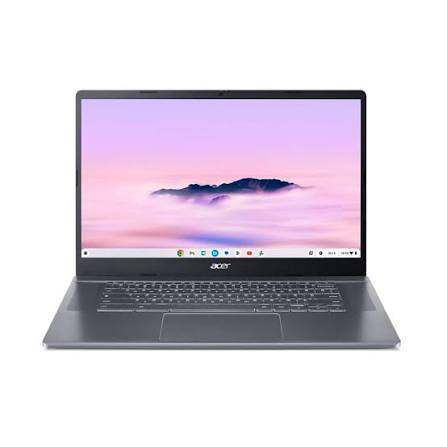
Acer Chromebook Plus 515 — check current price
| Spec | Acer Chromebook Plus 515 (CB515-2H / 2HT) |
|---|---|
| CPU | Intel Core i3-1215U (12th gen, 6-core) — some SKUs ship i3-1305U |
| RAM | 8 GB LPDDR5X (soldered) |
| Storage | 128 GB UFS (256 GB on some SKUs, non-upgradeable) |
| Display | 15.6” Full HD IPS, 1920×1080, ~250 nits |
| Ports | 2× USB-C 3.2 Gen1 (DisplayPort + charging), 1× USB-A 3.2 Gen1, full-size HDMI. No SD reader |
| Wireless | Wi-Fi 6E |
| Weight | 3.7 lb (1.68 kg) |
| Battery | 50 Wh; ~10 h dimmed, ~5 h at full brightness |
| Auto Update Expiration | June 2032 |
| Street price | Frequently $250–$330 new; certified-refurb units have been seen at $150–$185 |
Why this one, for this job specifically:
- It’s the cheapest thing that clears the Plus floor and gets found on sale constantly. This device is a permanent discount fixture.
- The 15.6” screen is the right screen for this work. You are reading control panels, comparing two tabs of DNS records, and squinting at a database connection string. A 15.6” 1080p panel beats a cramped 11” one for exactly this, and you don’t care that it’s 3.7 lb because it lives in a drawer.
- Full-size HDMI and USB-A. When this machine is also the “plug into the thing in the closet and look at a web UI” laptop, legacy ports matter more than thinness.
- Two USB-C ports. One for power, one free for a hardware key dongle or an Ethernet adapter, without a hub.
The obvious counterpoint — June 2032 is not ten years from now — is the most important sentence in this piece, so it gets its own section.
The spec nobody checks: AUE runway, and why the clock isn’t yours
Google’s Auto Update policy gives ChromeOS devices 10 years of updates from the platform release date — not from the date you bought it. That’s Google’s own language, and the same policy page tells buyers directly to “check the date when making a purchasing decision.”
Nearly nobody does. Here’s what it means in practice:
| Device | Platform era | AUE date | Update years left if bought Sept 2026 |
|---|---|---|---|
| Acer Chromebook Plus 515 (CB515-2H) | Late 2023 | June 2032 — published, confirmed | ~5.75 years |
| Acer Chromebook Plus 514 (CB514-6H, Core 3 N355) | Mid 2025 | Not published in the sources below. 2025 platform + 10 years ≈ 2035 | ~8.5 years — arithmetic, not a quote |
| Lenovo Chromebook Plus 14 (Kompanio Ultra 910) | 2025 | Same arithmetic, same caveat | ~8.5 years — arithmetic, not a quote |
| A $150 clearance Chromebook from a 2019 platform | 2019 | Already expired, or inside ~2 years | ~0–2 years |
Be careful about what those middle two rows are. The 515’s June 2032 is a date Google and the spec trackers actually publish. The other two are me multiplying: a 2025 platform plus the ten-year policy lands around 2035. That’s a reasonable expectation and it is not a commitment, which is exactly the distinction this section is about — so don’t let me be the source. Two more things make the arithmetic slipperier than it looks:
- AUE attaches to the platform, not the model name. Google’s policy defines the clock against a hardware “platform” — the board a device is built on, which is frequently shared across several manufacturers’ laptops. A vendor can also refresh a retail model name onto a newer board, or keep selling an old board under a name that sounds current. Two laptops on the same shelf with nearly identical marketing can sit two years apart on the update calendar.
- The clock starts at platform release, not at your purchase. This is the whole point of the section and it’s worth restating in the table’s terms: nothing about buying a device new, in a sealed box, from an authorized seller, in 2026, resets that date. You are buying into a countdown that’s already running.
So this is why “cheapest Chromebook on sale” is a trap, and why refurb deals need one extra check. A $150 certified-refurb unit with 18 months of security updates left is not a bargain for a device whose entire purpose is being trustworthy — it’s a machine that will quietly stop being the thing you bought it to be, without a single notification, sometime before your next hardware refresh.
The only authoritative answer is on the device itself: Settings → About ChromeOS → Additional details, which states the month updates end for that exact unit. Before you commit, check the model’s support page — and if you’ve already got the box open, check the setting and return it if the number is wrong.
For a break-glass machine, I think ~6 years of runway at $250–330 is a fine trade, because the job is narrow and the replacement in 2032 will cost less in real terms than this one does. But if you’d rather buy the runway, that’s the honest reason to spend up:
Acer Chromebook Plus 514 (Core 3 N355) — check current price — from about $400. Newer Twin Lake platform, 14” at 1920×1200 (the extra vertical pixels genuinely help on admin panels), commonly 512 GB of storage, and a materially longer support window. If the 515’s 2032 date bothers you, this is the answer, not a different brand.
Lenovo Chromebook Plus 14 — check current price — around $649 with a MediaTek Kompanio Ultra 910, OLED panel, 16 GB of RAM, and over 14 hours of video playback. It’s a genuinely nice laptop and it is the wrong purchase for this job. You are buying a fire extinguisher, not a car. If you want a nice ChromeOS laptop to actually work on daily, buy this one and understand you’re solving a different problem.
Search: Chromebook Plus, 8 GB / 128 GB — if you’d rather shop the floor than the model, this is the filter that matters.
What the clean machine does, and what it never does
The discipline is the whole product. Write this down and tape it to the lid.
| The clean machine does | The clean machine never does |
|---|---|
| Credential rotation after any incident | Regular email |
| Registrar and DNS changes | Opening attachments from anyone |
| Hosting control panel and SFTP key rotation | Installing extensions, ever |
| Payment gateway and bank admin | General web browsing |
| Password-manager master unlock during recovery | Staying signed in between sessions |
| Reading a device’s local web UI in the closet | Social media, even once |
| Approving MFA enrollment for a new hardware key | Being used because your main laptop is charging |
And the ritual, which takes under ten minutes total:
- Powerwash before you start. Every time. Not “if you think it needs it.”
- Connect to the network and let it update — then restart. ChromeOS downloads an update in the background but only applies it on restart. If you skip the reboot, verified boot has cheerfully attested the stale image you were trying to replace.
- Sign in, do the work, sign out. Which account you sign in as is the part that decides whether any of this worked — see below.
- Powerwash again. Back in the drawer.
- Once a quarter, take it out, boot it, let it update, and Powerwash. A Chromebook that’s been in a drawer for eleven months is 300 patches behind — still verified-boot-clean, but running an old browser against a live internet.
Step 5 is the one that gets skipped and it’s the one that quietly converts your clean machine into a stale machine.
The step-3 trap: sign in as who?
This is the mistake that silently voids the entire purchase, and I’ve never seen it mentioned in a Chromebook security recommendation.
You Powerwash the machine. Verified boot confirms the image. You sit down, and the setup screen asks you to sign in with a Google account — so you sign in with your Google account. The one you use every day. The one on your desktop.
ChromeOS then does exactly what it’s designed to do: it restores your synced profile. Your extensions reinstall themselves, automatically, without anyone clicking anything. Your saved passwords come back down. Bookmarks, autofill entries, and open tabs follow.
Look at what that does to the discipline table two sections up. “Installing extensions, ever — never.” You just installed all of them, and you didn’t do it, sync did. The freshly-wiped machine has re-downloaded the browser attack surface of the machine you don’t trust. If the reason you’re standing here is a malicious extension or a stealer that lived in your Chrome profile, congratulations: it’s on the clean laptop now, and it has a front-row seat for eleven password changes.
Verified boot is untouched by this and still working perfectly. It attests the operating system. It has no opinion about what you voluntarily sync into it afterward.
Two ways out. Pick one before the incident, not during:
| Option | How it works | Honest limitation |
|---|---|---|
| A dedicated break-glass Google account | Create one account that exists only for this laptop. Turn Chrome sync off. Never install an extension under it, never read mail with it, never sign it into anything but the laptop | It’s one more account to secure — so enroll both hardware keys on it and use it for nothing else. Free, takes ten minutes |
| Guest mode | Sign in as Guest. Nothing persists, nothing syncs, and the session is discarded on sign-out | No extensions at all, which means no password-manager extension. You’ll be reading long generated passwords off a second screen and typing them by hand. Tedious, and tedium is where people make mistakes |
Guest mode is the more rigorous of the two and it fits the job better than it sounds, because the discipline table already forbade extensions. Hardware security keys work fine in Guest mode, so your FIDO2 prompts still behave. But if your rotation workflow genuinely depends on a password manager extension, use the dedicated account with sync off instead of half-following a rule you’re going to break at 9pm on the third tab.
The one thing not to do is sign in with your daily account because it’s the one you remember the password to.
The cheaper things that solve part of this
A recommendation nobody can argue against isn’t a recommendation, so here’s the honest competition. Some of these you should do regardless of whether you buy the laptop.
A hardware security key — do this first, it’s cheaper and it addresses phishing, which the Chromebook doesn’t. A FIDO2 key makes a stolen password useless and makes a convincing fake login page useless too, because the key checks the origin. We made the full argument in why a hardware key is the cheap answer to browser zero-days. YubiKey 5 NFC — check current price — and buy two, because a single key with no backup is an outage waiting for a Tuesday.
Chrome’s Device Bound Session Credentials (DBSC). Google shipped this to general availability on Windows in Chrome 146, with macOS following. It cryptographically binds session cookies to the machine’s TPM (or Secure Enclave on macOS), so an exfiltrated cookie is useless off the originating device. It’s a real fix for the exact mechanism described at the top of this piece, it’s free, and if you run Google Workspace you can turn on session binding from the admin console. Two honest caveats: it’s platform-limited today, and it stops local cookie theft, not a session established by a phishing victim.
A dedicated browser profile. Free, and not a security control. Same OS, same user, same process tree, same filesystem an infostealer reads. Better than nothing for organizational hygiene. Zero help if the machine itself is compromised.
A virtual machine on your existing desktop. Better than a browser profile, worse than separate hardware, and it requires you to actually maintain a snapshot discipline. If your host OS has a keylogger, your VM’s keystrokes went through the host. If you’re already running VMs for agent work — the mini PC sandbox box pattern — you know the maintenance cost is not zero.
A spare laptop you already own. If you have an old machine you’re genuinely willing to wipe, dedicate, and never use for email, that’s $0 and it’s the right answer. Be honest about the “never use for email” part. That’s the clause everybody violates in month three, and it’s why purpose-built hardware wins — a Chromebook that only does this is much harder to accidentally repurpose than a Windows laptop that could do anything.
When not to buy this
Six situations where this is the wrong $300, stated plainly:
1. Your admin surfaces are already behind hardware keys, and you’re on a patched machine with DBSC on. If every credential on the rotation list is protected by a FIDO2 key, your sessions are TPM-bound, and you actually keep the OS current, the marginal risk this laptop removes is small. Spend the money on a second hardware key and a backup you’ve tested instead.
2. Your real problem is that four people share one admin login. A clean machine does nothing for shared credentials. Fixing that is free and it is strictly more valuable. Do that first; come back to this later, if at all.
3. You won’t keep it updated. A ChromeOS device three years past its AUE date, or one that hasn’t booted in a year, isn’t a trusted machine — it’s a machine with a comforting story. If you know you won’t do the quarterly boot-and-update, skip the purchase. Self-knowledge is cheaper than hardware.
4. Something on your rotation list needs software ChromeOS can’t run. Some banking portals still want a desktop token app. Some accounting and practice-management systems are Windows-only. Some hosting panels want a desktop SSH client with a specific key format. Walk your actual list, confirm every item works in a browser, and check before you buy. If two items fail, the machine can still do the other nine — but you should know that going in, not discover it mid-incident.
5. You’re buying it as a general work laptop. It’s a bad general work laptop if your business runs on Windows or macOS software. Don’t blur the purpose — that’s how it stops being clean. If you need a cheap real computer for the back office, that’s a completely different question and we answered it in the Mac mini M6 back-office buying guide.
6. You’re buying a used or heavily-discounted unit without checking the AUE date. Repeating it because it’s the single most common way this purchase goes wrong. No AUE date on the listing means the seller doesn’t know, which means assume the worst.
And the broader out: if you don’t have an incident to respond to and no meaningful admin credentials, you don’t need this. A one-person operation whose entire stack is one Shopify login protected by a passkey has bigger fish. This is a purchase for businesses with a real credential surface — hosting, registrar, database, payment gateway, staff email — and someone who’d be the one to change them all at 9pm.
The cost math, without the scare tactics
I dislike “cheaper than a breach” arguments because the denominator is invented. Here’s the narrower version.
The realistic cost of a re-compromise is not a headline number. It’s: a second incident-response weekend, a second round of customer notification if data was involved, and — the expensive one — the loss of the ability to say “we contained it,” because you demonstrably didn’t. That last item is what turns a two-day problem into a three-week one, and it’s what a clean machine buys you: the ability to state, with a mechanism behind it, that the new credentials were created on a device that was verified at boot and wiped before use.
Against that: $250–330, once, for a device with nearly six years of support left, that also happens to be a perfectly good “walk to the closet and read a web UI” laptop.
The comparison that actually decides it, though, isn’t dollars. It’s this: right now, if someone asked you to prove that the machine you’d use to rotate credentials is clean, what would you say? If the answer is “it has antivirus and I’m careful,” that’s a belief. The point of the $300 is replacing a belief with a procedure.
If today is the day you found out you needed this — say, because you spent this morning checking whether an unauthenticated WordPress file-include bug got used against your site — then step 7 of that cleanup list is where this purchase pays for itself, and the order of operations matters: get the clean machine, then rotate. Doing it in the other order is the loop this whole piece is about. And when you’re done, the other half of a survivable incident is a restore you’ve actually tested, which is the argument in the offline backup drive piece.
Sources
10 refs- Chromebook Plus: more performance and AI capabilities — Google — Google’s own announcement of the Chromebook Plus hardware certification, the basis for the minimum-spec table (Intel Core i3 12th gen / AMD Ryzen 3 7000 or above, 8 GB RAM, 128 GB storage, Full HD IPS display, 1080p+ webcam).blog.google
- Auto Update policy — Chrome Enterprise and Education Help — Google’s official policy that ChromeOS devices receive 10 years of updates from the platform release date, not the purchase date, the definition of a “platform,” the instruction to check the date when making a purchasing decision, and the note that verified boot continues to function after AUE.support.google.com
- Acer Chromebook Plus 515 (CB515-2H / CB515-2HT) — Acer United States — manufacturer specifications for the lead pick: 15.6” Full HD IPS display, LPDDR5X memory, 1080p webcam with AI video-call tools, and charge-to-50%-in-~30-minutes claim.acer.com
- Acer Chromebook Plus 515 specs and AUE date — Starry Hope — the detailed spec and support-date reference used in the lead-pick table: i3-1215U / i3-1305U CPU options, 8 GB LPDDR5X, UFS storage, port list (2× USB-C, 1× USB-A, full-size HDMI, no SD reader), 3.7 lb weight, 50 Wh battery, real-world battery figures, and the June 2032 AUE date.starryhope.com
- Acer Chromebook Plus 514 with Core 3 N355 coming in July for $400 and up — Liliputing — pricing and specifications for the longer-runway alternate: Intel Core 3 N355 (Twin Lake), 14” 1920×1200 display, $400 starting price.liliputing.com
- The best Chromebook you can buy in 2026 — Engadget — independent review data for the Lenovo Chromebook Plus 14 ($649, MediaTek Kompanio Ultra 910, OLED, 16 GB RAM, 14+ hours of video playback) and the current Chromebook Plus street-price landscape.engadget.com
- Protecting Cookies with Device Bound Session Credentials — Google Security Blog — Google’s description of how infostealers extract and exfiltrate authentication cookies, why long cookie lifetimes let attackers in without a password, and how DBSC binds sessions to hardware.blog.google
- To counter cookie theft, Chrome ships device-bound session credentials — Help Net Security — the DBSC rollout status used in the alternatives section: general availability in Chrome 146 on Windows via TPM, macOS via Secure Enclave to follow, and the limitation that it addresses local cookie theft specifically.helpnetsecurity.com
- Infostealer Malware: How It Steals Credentials — SpyCloud — SpyCloud’s 2026 Identity Threat Report figure of 18.1 million exposed API keys and tokens from malware sources alone, used as the scale claim in the opening section.spycloud.com
- The ChromeOS-Android merger and Aluminium OS — Starry Hope — the merge timeline and device-readiness guidance used in the spec-floor section: the Sameer Samat confirmation at Qualcomm’s Snapdragon Summit in September 2025 and the direct quote, the John Maletis “ChromeOS isn’t going anywhere” statement, the commitment that Chromebooks keep ten years of updates from launch regardless of whether they upgrade to Aluminium OS, and the 2021-or-newer CPU / 8 GB RAM / 128 GB storage readiness floor (with 4 GB / 32 GB configurations excluded).starryhope.com
comments
loading comments…
No comments yet. Start the thread.