Header image credit: Illustration by Ctrl Alt Orion. No AI-generated imagery used.
Note: Google opened its SynthID Detector to everyone on October 7, 2026. That’s one day old as of this writing, so expect the site and its partner list to change.
A customer emails a photo of a cracked part and asks for a refund. A vendor sends “product shots” for a listing. A local group shares a heartbreaking picture with a donation link. Two years ago, how to tell if an image is AI generated was easy: glance at it, check the fingers, and move on. That check doesn’t work anymore.
Malwarebytes put it bluntly in July: you can’t reliably spot AI images by eye anymore, and advice like “count the fingers” or “look for garbled text” is becoming outdated because today’s generators usually get those details right (Malwarebytes). Their better question is not “does this look real?” but “is there any evidence that it’s genuine?”
As of this week, there’s a free tool that answers part of that question. Google’s SynthID Detector, which used to be limited to journalists and researchers, is now open to anyone at synthid.com. Upload an image, video, or audio clip and it checks for an invisible SynthID watermark.
Here’s the catch Google itself puts on the page: it is not a general AI detector. It only finds media made with tools that embed SynthID. So this guide covers both halves: how to use the free SynthID checker properly, and what to do when it comes back empty, which will be most of the time.
What Google launched: the SynthID Detector, now open to everyone
On October 7, 2026, Google launched a site that lets anyone check whether an image, video, or audio clip was generated with AI, according to TechCrunch. Google had made the tool available to select journalists, media professionals, and researchers for testing at Google I/O last year. Now it’s open to everyone. The Verge reports that the detector is rolling out globally and that you use it by logging into synthid.com.
The basics, from TechCrunch’s report:
- Images: JPG, JPEG, PNG, BMP, WEBP, AVIF, HEIC, HEIF, TIFF, TIF, and GIF
- Video: MP4, MOV, and WEBM
- Audio: WAV, MP3, OGG, FLAC, AAC, and M4A
Google says people already make 1 million requests a day to verify content, and SynthID verification is also built into the Gemini app and Google Chrome (TechCrunch).
What SynthID actually is
SynthID is a watermarking approach from Google DeepMind. It embeds an imperceptible digital watermark directly into AI-generated content: into the pixels for images and video, and into the frequency components of audio (synthid.com). Google introduced it in 2023.
The key difference from a visible logo or a metadata tag is that the watermark is woven into the content itself. Google says that means it “travels with the content wherever it goes” and is built to survive the things that happen to files when they’re shared and reshared. DeepMind says the image and video watermark is added the moment the content is created and is designed to stand up to cropping, filters, frame-rate changes, and lossy compression (Google DeepMind).
Which AI tools the SynthID checker can see
This is the part that matters most. SynthID only detects media from companies that have adopted it. Per TechCrunch, Google’s Nano Banana, Veo, and Lyria models, plus tools with generation features like Gemini, Flow, ProducerAI, and Vids, all watermark what they generate. OpenAI, Nvidia, and Kakao also support SynthID, and Apple is said to be adding support soon. Google’s own DeepMind page lists the detector as covering “AI from Google or our partners, including OpenAI, NVIDIA, Kakao, and soon, Apple.”
Malwarebytes adds that SynthID now also covers images created with ChatGPT and DALL·E through a partnership announced in 2026.
What it does not cover, in Google’s own words on synthid.com: “This is not a general AI detector. We can only detect media from the above companies, who have adopted SynthID technology.” TechCrunch notes that Microsoft and Meta have their own standards for watermarking and verifying content. So an image from a generator outside the SynthID partner list will come back “not detected” even if it’s 100% AI.
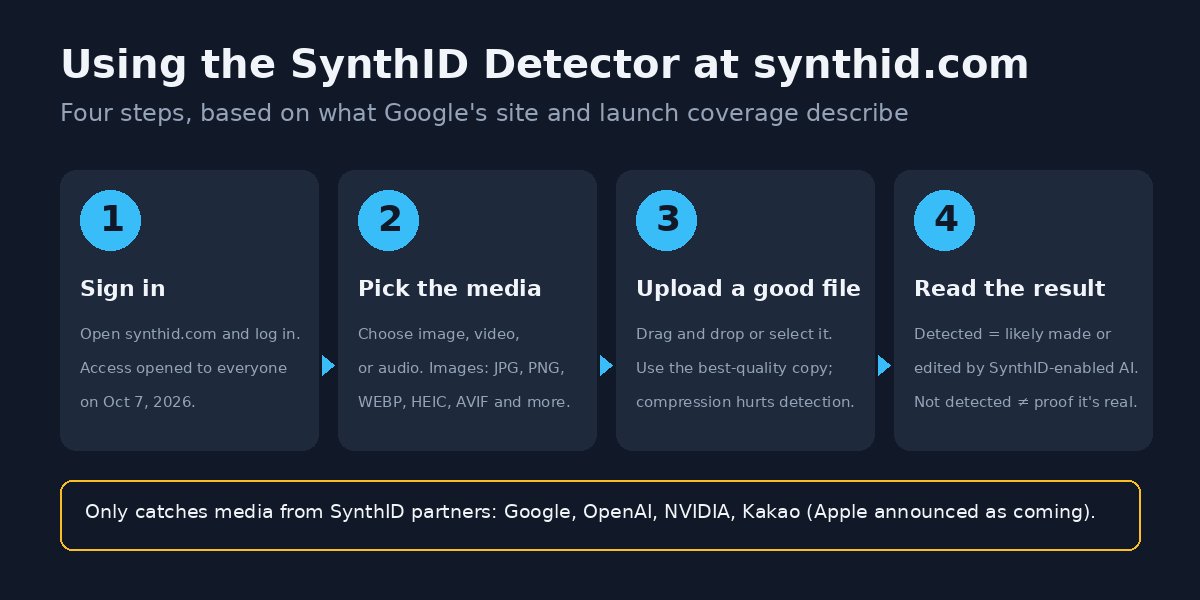 The four-step SynthID check, based on Google’s synthid.com page and launch coverage. Diagram: Ctrl Alt Orion.
How to use the SynthID checker at synthid.com, step by step
This walkthrough is based only on what Google’s site and the launch coverage describe. I haven’t logged in and run files through it, so treat the exact button labels as approximate.
Step 1: Go to synthid.com and sign in
Open synthid.com. The Verge reports that anyone can now use the detector “by logging into synthid.com.” Neither Google’s page nor the launch coverage mentions a price.
Step 2: Pick the media type
The page lets you choose the media you’re checking: audio, video, or image. Per synthid.com, the detector handles each type a little differently:
- Images: detects whether a watermark is present in the image
- Video: detects which segments of the video carry the watermark
- Audio: detects which segments of the audio carry the watermark
That segment detail matters for video and audio. A clip can be partly real and partly generated, and the result can point to the parts that carry the mark.
Step 3: Upload the best copy of the file you can get
The page offers drag-and-drop or a file picker. Google is specific about file quality: “please upload the highest quality file possible to ensure maximum detection accuracy,” and heavy compression and editing affect detection (synthid.com).
In practice, that means asking for the original file instead of checking a screenshot of a screenshot. If a customer sent you a photo through a messaging app, ask them to email the original. If you’re checking something from social media, find the earliest, largest copy you can.
Step 4: Read the result, and read it carefully
Synthid.com spells out how to interpret each result:
- Watermark detected: a SynthID watermark is present, and the content “was likely edited or generated by a SynthID-enabled AI model.”
- Watermark not detected: no confident signal was found, so it was not likely made or edited by a SynthID-enabled model. Google adds that this “does not totally rule out AI generation or manipulation.”
Google lists the reasons AI content can still come back “not detected”: it was made by a model without SynthID (a non-partner, or made before that company adopted it), or heavy modifications degraded the watermark. And in the other direction: “In very rare cases SynthID can also falsely trigger on non-watermarked content.”
Note the word “edited” in the detected result. A watermark can show up because someone used a SynthID-enabled AI tool to edit a real photo, not only to generate a new one. DeepMind describes SynthID as a way to identify “AI-generated (or altered) content.” So “detected” tells you AI touched the file. It doesn’t by itself tell you how much.
The shortcut: ask Gemini, Search, or Chrome
If you already live in Google’s apps, you don’t have to visit synthid.com. DeepMind says you can upload an image, video, or audio clip to Gemini, Search, or Chrome, ask whether it was created or altered by Google AI, and it will check for a SynthID watermark (Google DeepMind). Malwarebytes says the Gemini check looks for both SynthID and Content Credentials.
For ChatGPT and DALL·E images, OpenAI runs its own checker. TechCrunch notes that OpenAI maintains its own site for checking content, and Malwarebytes lists OpenAI Verify as checking SynthID and Content Credentials in ChatGPT, DALL·E, and API-generated content.
Watch out for fake “SynthID detector” sites
Searching “synthid detector” or “synthid checker” will turn up sites that borrow the name. Malwarebytes warns that reading the actual SynthID watermark requires technology only Google and its approved partners have, so only official tools like Google’s own apps and OpenAI Verify can directly verify it. Third-party sites using the SynthID name “are usually estimating whether an image is AI-generated, not reading the actual watermark.” Use synthid.com, Gemini, or OpenAI Verify, and treat anything else as a guess.
Why “not detected” doesn’t mean the image is real
This is the result most people will see, and it’s the one most people will misread. Malwarebytes calls “not found” “the most misread result”: most real photos don’t contain any provenance information, and a “no watermark” result is the normal result for most genuine photos. It doesn’t rule AI in or out (Malwarebytes).
Google is just as direct. On synthid.com it says that no signal is completely robust and recommends “collecting multiple points of data before making a decision.” It also admits the watermark isn’t infallible: “if someone tries many transformations, they may be able to find one that doesn’t get detected.” SynthID, in Google’s framing, is “one important layer in a broader approach to content provenance — not a standalone guarantee.”
There’s also a difference between watermark detection and general “AI detectors.” Google explains that SynthID verifies an intentional signal embedded at creation, which makes it highly reliable but limited to SynthID-integrated models. General AI detectors look for patterns left behind by generative models to estimate a likelihood when no embedded signal exists. They’re broader, but Google says they “can sometimes be less reliable than watermarking” (synthid.com).
So a “detected” result is strong evidence. A “not detected” result is the start of the job, not the end of it.
Is this image AI? Every free checker and what each one catches
Here’s the full toolkit, in rough order of how much weight each result deserves. Nothing in this table proves an image is real. A few can give you strong evidence that it isn’t.
| Method | What it catches | Limits |
|---|---|---|
| SynthID Detector (synthid.com) | Images, video, and audio made or edited with SynthID-enabled tools from Google, OpenAI, Nvidia, Kakao, and soon Apple | Not a general AI detector. Misses other generators. Heavy edits and compression can degrade the mark. Rare false positives |
| Gemini, Search, or Chrome | SynthID watermarks; Gemini also checks Content Credentials, per Malwarebytes | Same partner limits as SynthID |
| OpenAI Verify | SynthID and Content Credentials in ChatGPT, DALL·E, and API-generated content, per Malwarebytes | OpenAI content only |
| Content Credentials (C2PA) | Recorded history of how a file was created and edited, when the creator attached it | Most images don’t carry them. Messaging apps often strip them. Proves the pipeline, not the truth |
| Reverse image search | Earlier copies online, original captions, where the image first appeared | Fresh AI images have no history to find. No matches isn’t proof either way |
| Metadata | Context about the file’s origin when it survives | Easily lost when files are shared or re-encoded |
| Visual tells | Inconsistent lighting, distorted reflections, mismatched jewelry | Modern generators usually get the details right. Never a verdict on its own |
Sources for the table: synthid.com, TechCrunch, Google DeepMind, and Malwarebytes.
Fallback 1: Check Content Credentials (C2PA)
Content Credentials are the other half of the provenance picture. The Coalition for Content Provenance and Authenticity (C2PA) publishes an open technical standard “for publishers, creators and consumers to establish the origin and edits of digital content,” and that standard is called Content Credentials (C2PA). C2PA describes them as working “like a nutrition label for digital content,” giving anyone a look at the content’s history.
According to contentcredentials.org, the specification is a C2PA project that has grown to hundreds of companies, led by Microsoft, Adobe, Intel, BBC, Truepic, Sony, Publicis Groupe, OpenAI, Google, Meta, and Amazon.
How to check Content Credentials
- Look for the pin. The Content Credentials pin signals that the content contains information about its provenance. Per contentcredentials.org, it previews an interactive component that reveals key information, including the method of creation and a record of editing history.
- Use the free Verify page. Go to contentcredentials.org/verify, which forwards to the Content Credentials Verify site, and check the file there.
- Or let Gemini or OpenAI Verify read them. Per Malwarebytes, both check Content Credentials alongside SynthID.
What a Content Credentials result means
- Credentials found: the file contains provenance information about how it was created or edited. Malwarebytes notes this helps establish origin, but it doesn’t prove the scene itself is genuine.
- A valid credential proves the pipeline, not the truth. Malwarebytes’ example: someone photographs a screen playing a deepfake video. The credential is completely valid because the camera really did take that picture. It just can’t tell you the content on the screen was fake.
- No credentials: normal. Most images online don’t have them, and Malwarebytes reports that WhatsApp, iMessage, and Facebook re-encode images on upload, often removing embedded credentials. That’s exactly why Google built SynthID into the pixels instead.
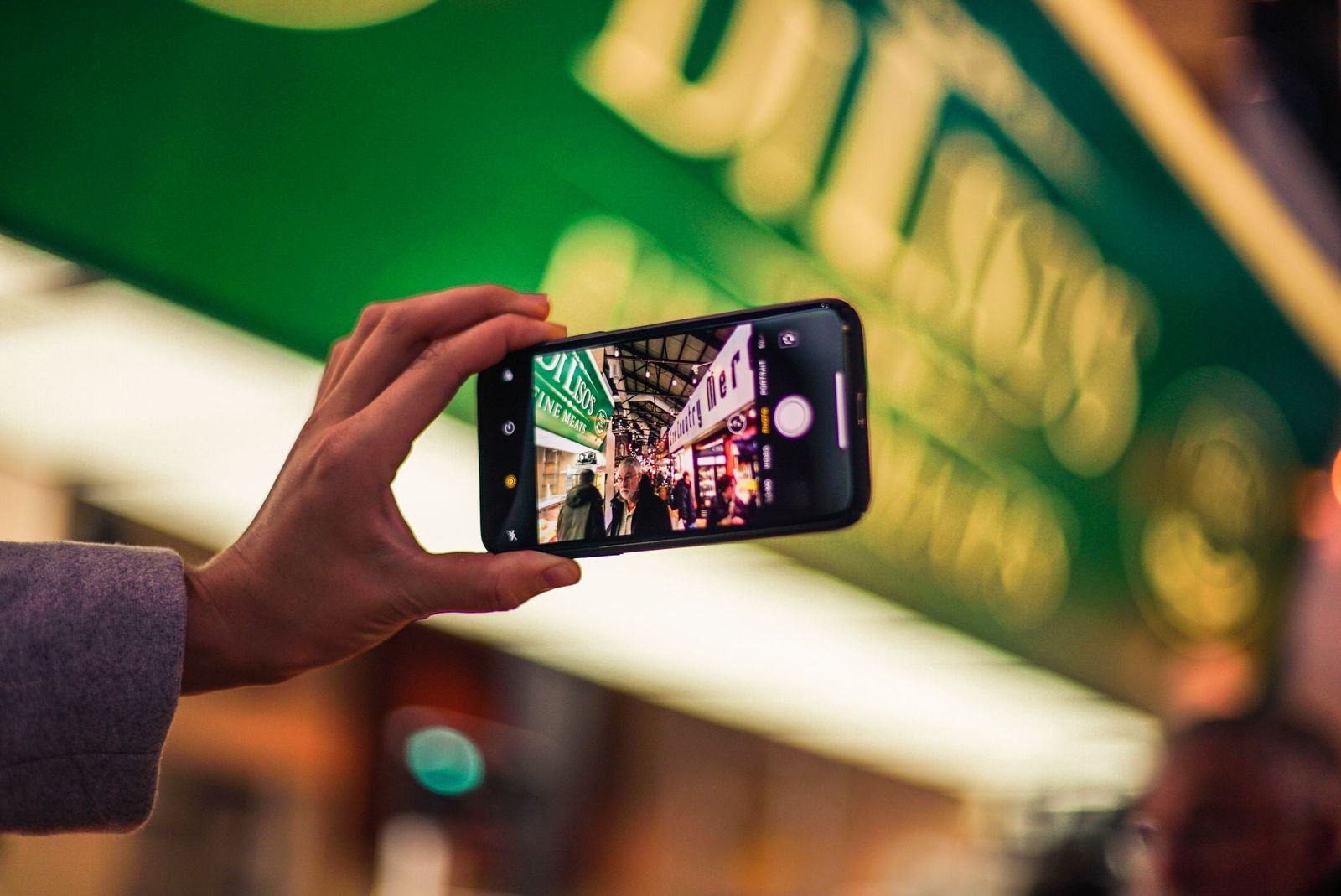 A real photo, not AI. A genuine photo like this would normally come back “not detected” from SynthID, which is why that result proves nothing on its own. Photo: Wendy Wei / Pexels (free to use).
Fallback 2: Reverse image search
Reverse image search doesn’t look for AI fingerprints at all. It looks for history. Malwarebytes recommends Google Lens, TinEye, and Bing Visual Search, which “can often reveal where an image first appeared online” (Malwarebytes).
What you’re looking for:
- An earlier copy with a different story. If the “photo from this morning” shows up on a page from last year, you have your answer without needing any AI check.
- A complete lack of history where there should be some. Malwarebytes’ guidance: if someone claims an image has been circulating for days or comes from a widely reported event, a complete lack of history “is worth questioning.”
And the honest limit: no matches doesn’t necessarily mean an image is fake. Personal photos and newly published images often won’t appear anywhere else. It also cuts the other way. Malwarebytes points out that in fake lost-pet scams, the image is generated rather than stolen, so a reverse image search may not reveal an original source.
Fallback 3: Check the metadata, but don’t lean on it
Metadata is the information stored alongside the pixels in a file, and when it survives, it can add context. The problem is how often it doesn’t. Google contrasts SynthID with “visible logos or file metadata (which can be lost),” and that’s the whole case against relying on metadata alone (synthid.com). As noted above, Malwarebytes reports that the big messaging apps re-encode images and often strip embedded credentials on the way through.
Two practical rules:
- Missing metadata proves nothing. It’s the default state of almost any image that’s been through a chat app or social platform.
- Ask for the original file. If a photo matters (a damage claim, a dispute, a listing), the original from the sender’s camera roll carries far more information than a forwarded copy. Same advice as for SynthID: the best copy gets the best answer.
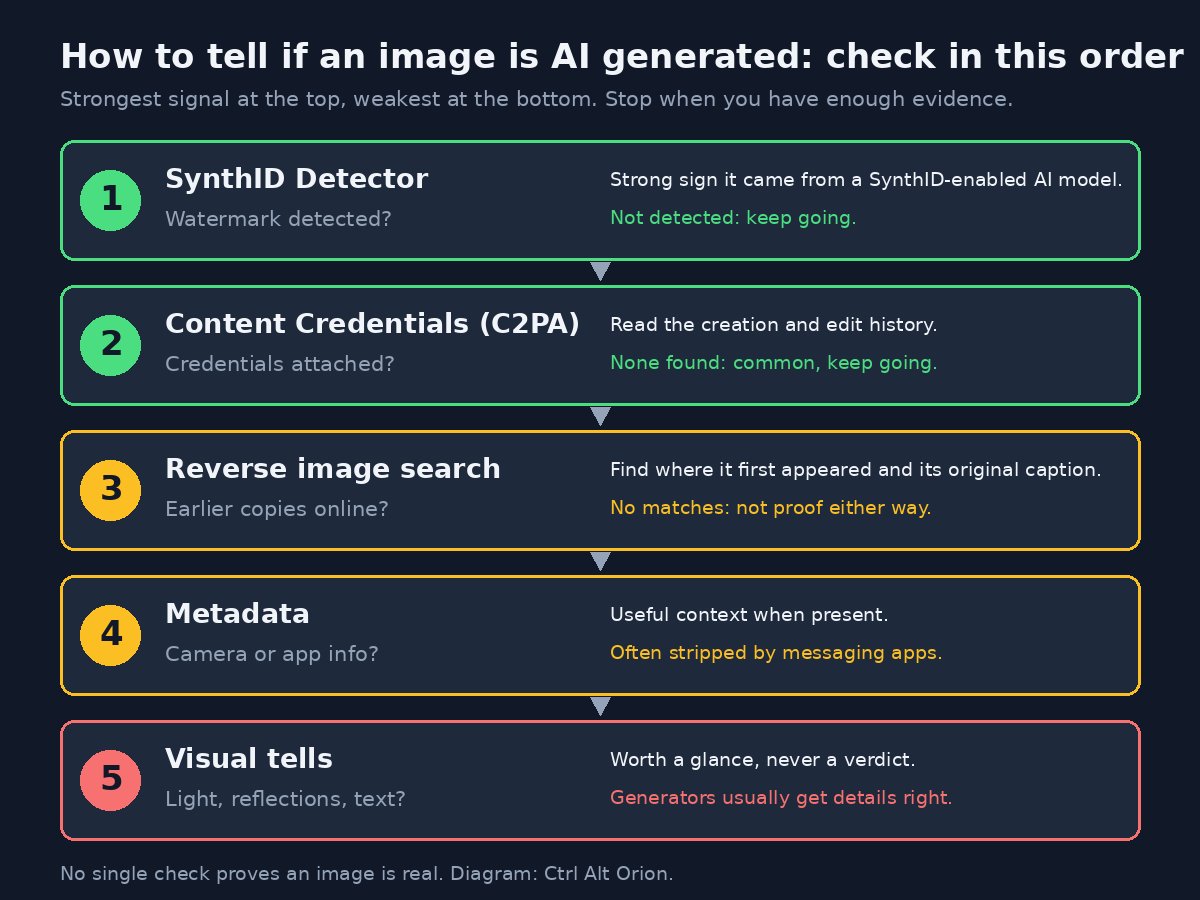 Work from the strongest signal to the weakest, and stop when you have enough evidence. Diagram: Ctrl Alt Orion.
Fallback 4: How to tell if an image is AI or real by eye (and why it’s fading)
You’ve probably seen the classic checklist: count the fingers, read the background text, look for warped hands. Malwarebytes says that advice “is becoming outdated because today’s AI image generators usually get those details right.”
They also explain why older tricks don’t transfer. Spotting a fake used to mean spotting edits: a repeating background, a shadow in the wrong place, artifacts around a pasted-in object. That worked because manipulated images usually started with a real photo. AI images are created from scratch, with no original image underneath, so those editing mistakes often don’t exist.
Visual clues are still worth a glance. What Malwarebytes suggests looking for:
- Inconsistent jewelry
- Unusual lighting
- Distorted reflections
- Odd movement (for video)
Hands and text can still be worth a look, but given that generators usually get them right now, a clean set of fingers or a readable sign tells you very little. The rule that matters: “don’t assume an image is genuine just because you can’t spot anything wrong.”
 A real photo, not AI. Lighting and reflections are worth a glance, but a clean, believable image proves nothing on its own. Photo: Kabiur Rahman Riyad / Pexels (free to use).
What this means if you run a small business
AI images are a customer-service problem now, not just a social media one. Malwarebytes lists the patterns already in use: fake lost-pet posts asking for “rehoming fees,” fake fundraising appeals, dating-profile photos of people who don’t exist, and fake artists who win paid commissions with AI-generated portfolios.
For a small shop, the closest version is photo evidence in claims. In our piece on AI-generated form spam and small-business intake, the fix for AI-drafted warranty claims was to raise the cost of evidence, like requiring a photo of the defect plus a serial number or order ID. That still holds, but now you should check the photo too. A practical routine for any claim that involves money:
- Ask for the original file, not a screenshot or a forwarded chat image.
- Run it through synthid.com (or Gemini). A “detected” result on a “photo of my broken item” is a red flag worth a follow-up question.
- Check Content Credentials if the file carries them.
- Reverse search it if it looks like it could have come from somewhere else.
- Lean on the evidence you control: order history, serial numbers, and whether the story holds up. Malwarebytes’ advice applies here too: distrust the situation, not just the picture.
The flip side applies to your own photos. If you sell online, real, consistent product photos are an asset. Our guide to a resale photo studio for under $100 covers getting clean, true-color shots from a phone and a window. Photos you took yourself, of the item you’re actually shipping, are the easiest kind to stand behind.
When this doesn’t apply
If nobody is asking you for money or a decision based on an image, you don’t need a five-step verification routine for every meme. Save the effort for images attached to a refund, a payment, a donation, a hire, or a news story you’re about to share.
FAQ
How can I tell if an image is AI generated for free?
Start with Google’s free SynthID Detector at synthid.com, which checks images, video, and audio for SynthID watermarks. Then check Content Credentials, run a reverse image search with Google Lens, TinEye, or Bing Visual Search, and only then look for visual tells. No single check proves an image is real.
Is the SynthID Detector free, and who can use it?
Anyone can use it as of October 7, 2026, and neither Google’s page nor the launch coverage lists a price. You log into synthid.com, choose the media type, and upload a file. Before that, it was limited to select journalists, media professionals, and researchers.
Can SynthID detect images from any AI generator?
No, only from generators that use SynthID. Google says the detector is “not a general AI detector” and only finds media from companies that have adopted SynthID: Google, OpenAI, Nvidia, Kakao, and soon Apple, per Google and TechCrunch. An image from any other tool will likely come back “not detected.”
If SynthID says “not detected,” is the image real?
Not necessarily. Google says a “not detected” result “does not totally rule out AI generation or manipulation.” The image could come from a non-partner model, or heavy edits could have degraded the watermark. Malwarebytes notes “not detected” is also the normal result for most genuine photos.
Are third-party “SynthID checker” websites legit?
Be careful. Malwarebytes reports that only Google and its approved partners can read the actual SynthID watermark, so third-party sites using the name are usually estimating, not reading it. Stick to synthid.com, Gemini, or OpenAI Verify.
How do I tell if an image is AI or real just by looking?
You mostly can’t anymore. Malwarebytes says generators usually get fingers and text right now. Inconsistent jewelry, unusual lighting, and distorted reflections are still worth a glance, but a clean-looking image is not proof it’s real.
What file types does the SynthID Detector accept?
Per TechCrunch, images in JPG, JPEG, PNG, BMP, WEBP, AVIF, HEIC, HEIF, TIFF, TIF, and GIF; video in MP4, MOV, and WEBM; and audio in WAV, MP3, OGG, FLAC, AAC, and M4A. Upload the highest quality file you can get, since heavy compression and editing affect detection.
Can the SynthID checker tell if a real photo was edited with AI?
It can flag one. A “watermark detected” result means the content “was likely edited or generated by a SynthID-enabled AI model,” so a real photo edited with a SynthID-enabled tool can show up as detected. It tells you AI touched the file, not how much.
Do I have to use synthid.com to check for SynthID?
No. DeepMind says you can upload an image, video, or audio clip to Gemini, Search, or Chrome and ask whether it was created or altered by Google AI. For ChatGPT and DALL·E images, Malwarebytes lists OpenAI Verify, which checks SynthID and Content Credentials.
The bottom line
Google’s SynthID Detector is a genuinely useful free check, and it’s honest about its limits. A “detected” result is strong evidence that a SynthID-enabled AI tool made or edited the file. A “not detected” result tells you very little on its own, because the detector can’t see generators outside its partner list and most real photos come back the same way.
So use it first, not alone. Get the original file, run the SynthID check, read any Content Credentials, reverse search the image, and treat visual tells as the weakest evidence on the list. When an image is being used to get money or a decision out of you, the question isn’t “does this look real?” It’s “what evidence do I actually have?”
Sources
6 refs- Google’s new SynthID website can identify AI-generated media — TechCrunch: October 7, 2026 launch, earlier access for journalists and researchers, supported image, video, and audio formats, Google models and tools that watermark output, OpenAI/Nvidia/Kakao support and Apple coming, OpenAI’s own checker, Gemini and Chrome integration, 1 million daily verification requests, Microsoft and Meta standards.techcrunch.com
- Google’s AI content detector is rolling out globally — The Verge: global rollout, near-invisible watermark, access by logging into synthid.com.theverge.com
- SynthID Detector — synthid.com: “not a general AI detector,” upload guidance, how to read detected and not-detected results, false negatives and rare false positives, watermark vs. general AI detectors, robustness limits, partner companies.synthid.com
- SynthID — Google DeepMind: how the watermark works, robustness to cropping, filters, and compression, checking in Gemini, Search, and Chrome, partner list including OpenAI, NVIDIA, Kakao, and soon Apple.deepmind.google
- How to tell if an image is AI-generated — Malwarebytes: fading visual tells, reverse image search tools and limits, Content Credentials and SynthID interpretation, messaging apps stripping credentials, misleading third-party “SynthID detector” sites, OpenAI Verify, common AI image scams.malwarebytes.com
- C2PA and Content Credentials: the Content Credentials standard, the “nutrition label” description, the pin and edit history, member companies, and the Verify page.c2pa.org · contentcredentials.org
comments
loading comments…
No comments yet. Start the thread.